Tip Tabs Explained 
Hey everyone! Since there are a few new buttons and tabs and more new stuff being added frequently, I want to take a moment to show you how things work over at the Tip page.
Sound Alerts Tab
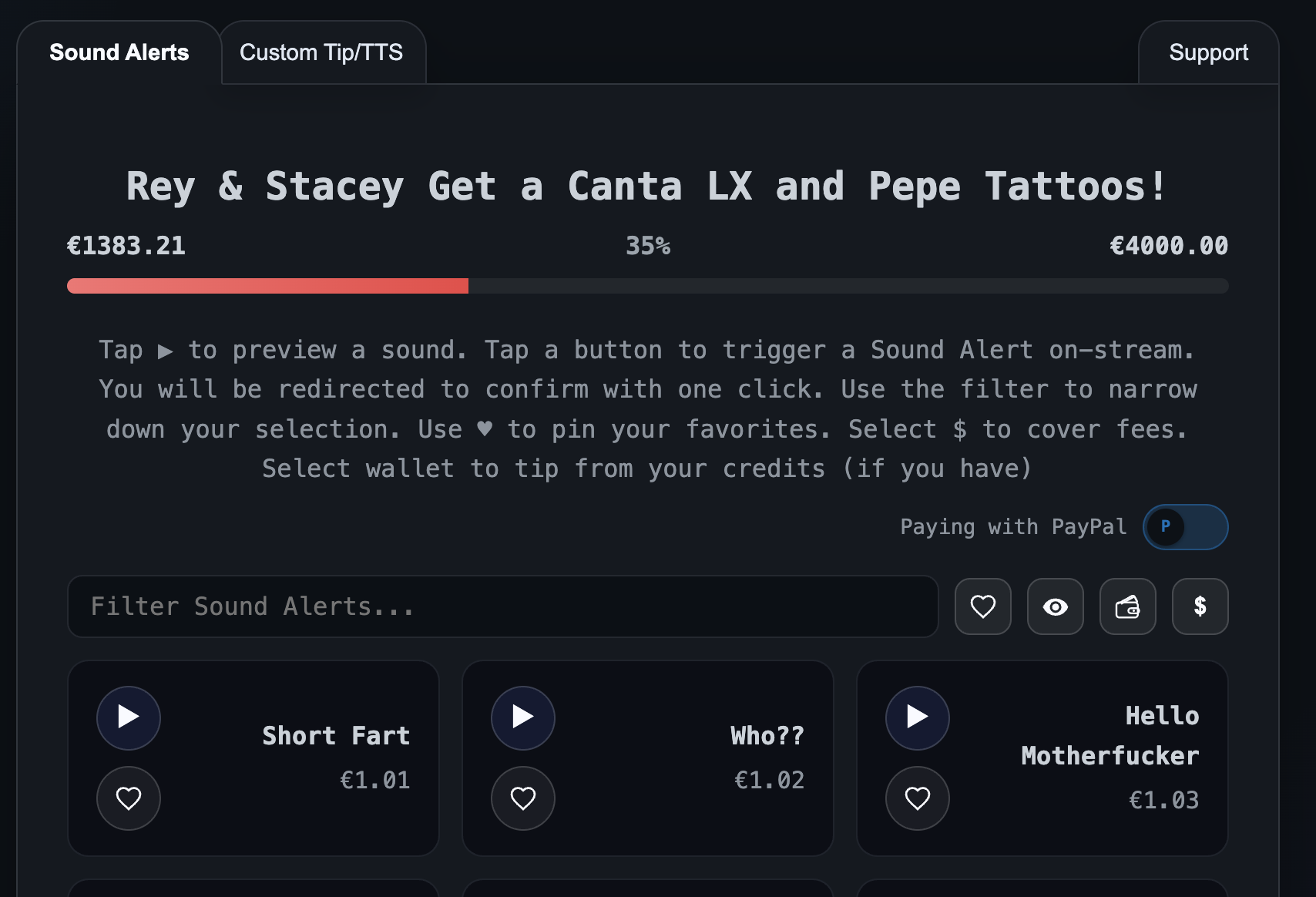 Over at the Sound Alerts tab you have a big list of sound alerts arranged by price that you can scroll through. You can also narrow your choices with the filter bar.
Above the filter bar is a toggle that lets you switch between PayPal or Stripe as your payment method. Next to the filter bar there are 4 buttons, let's talk about those real quick, they allow you to do some interesting things:
The Heart button brings all of your favorited sound alerts to the top of the list. Toggle this to "off" and your favorites will return to their positions in the list.
 The Eye button allows you to make your tip anonymously. Your username will not be revealed as the tipper in chat or the stream overlay with this enabled.
 The $ button allows you to optionally cover the processing fees of your tip, ensuring the streamer gets the full amount. If you choose to cover fees, the fee amount gets credited to your wallet as a bonus (see next button).
 The Wallet button skips PayPal/Stripe and instead lets you spend your wallet credit on alerts. When activated, alerts pop in ONE click, so be careful! You can gain credit by activating the $ button and covering fees, or by tipping over at the Support Tab (more on that below).
The Alerts!
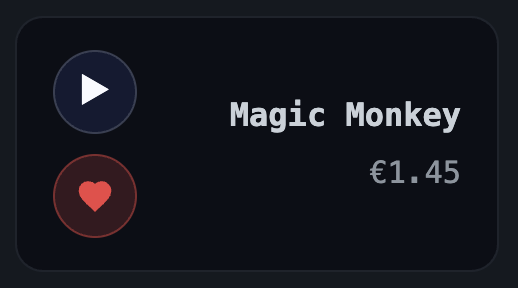 The Sound Alerts are easy as hell to use! You can click the ► button to preview any sound alert in the list (have fun!). If you hit the ♥ button, it will immediately add that Sound Alert to your favorites. Tap it again to remove it from your favorites
As explained above, if you hit the ♥ button over by the filter, you'll bring all your favorites Alerts to the top for your convenience. To trigger the sound alert, just tap anywhere on the Sound Alert that isnt the ► or ♥ button. You'll be prompted to pay via your selected method, and when that completes you will get a success message and the Sound Alert will play on stream! If the Wallet button is enabled, it will skip the payment process and take straight from your credits (if you have any). You can gain credit via covering fees on Alerts, or by tipping on the Support tab towards the Yearly Streaming Costs goal.
Custom Tip/TTS Tab
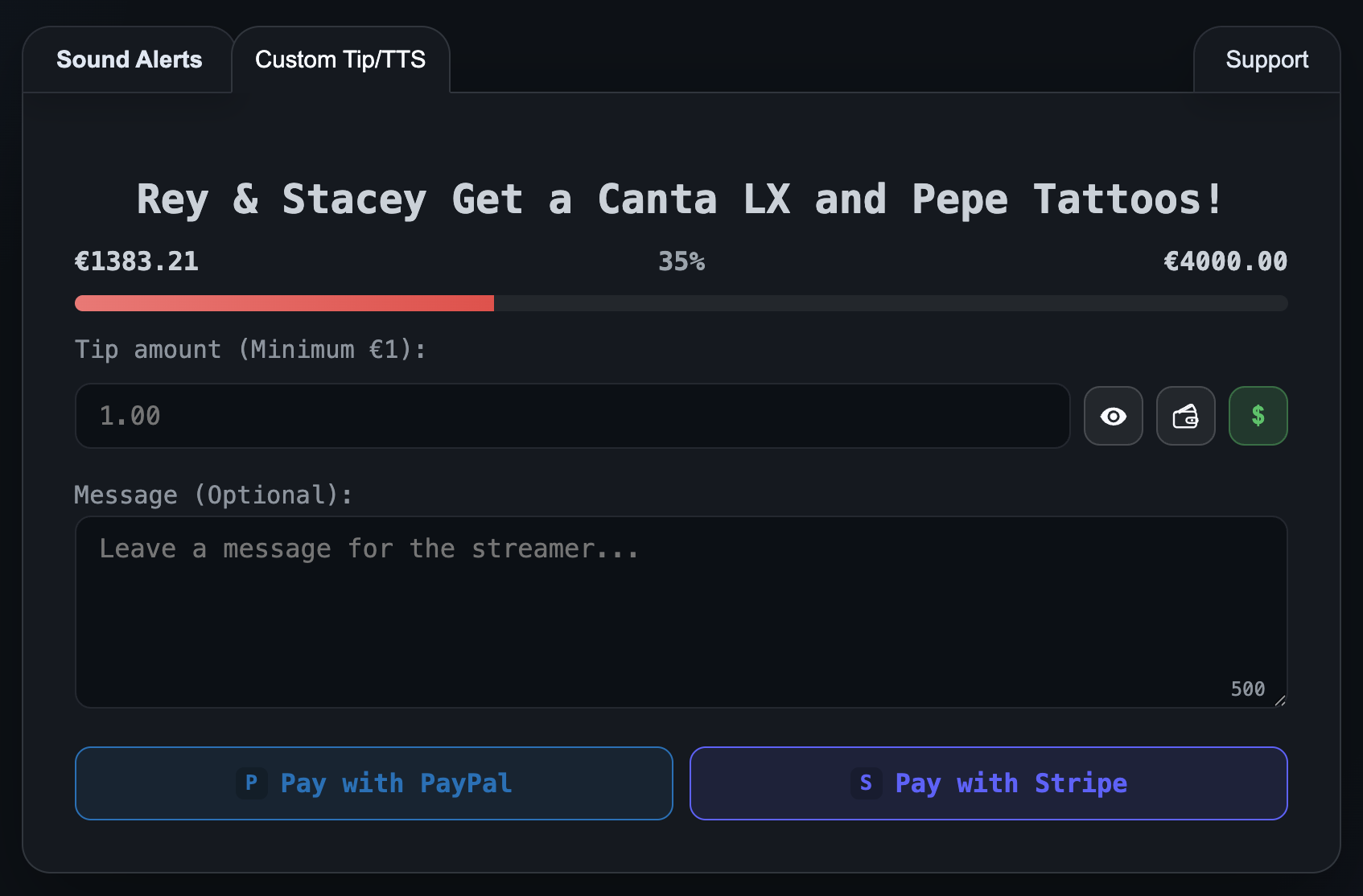 The Custom Tip/TTS tab is almost the same because it contains the same filter and buttons as the Sound Alerts tab. There's just a couple differences. Here, you can enter whatever amount you like. The minimum amount is €1 and that is also the cost of TTS. If you enter an amount, Sound Alerts will appear at the bottom of the page that you can select from, within the amount you chose to tip. Any leftover amount from your tip will be credited to your wallet. Users can choose to attach any sound alert they like to their TTS message, or choose not to leave a TTS message, completely up to you. That's why it's called Custom Tip/TTS
  Other than being able to select your total tip amount and add a message to be spoken aloud by Brian, our TTS reader, it is pretty much the same as the Sound Alerts tab. Moving on!
Support Tab
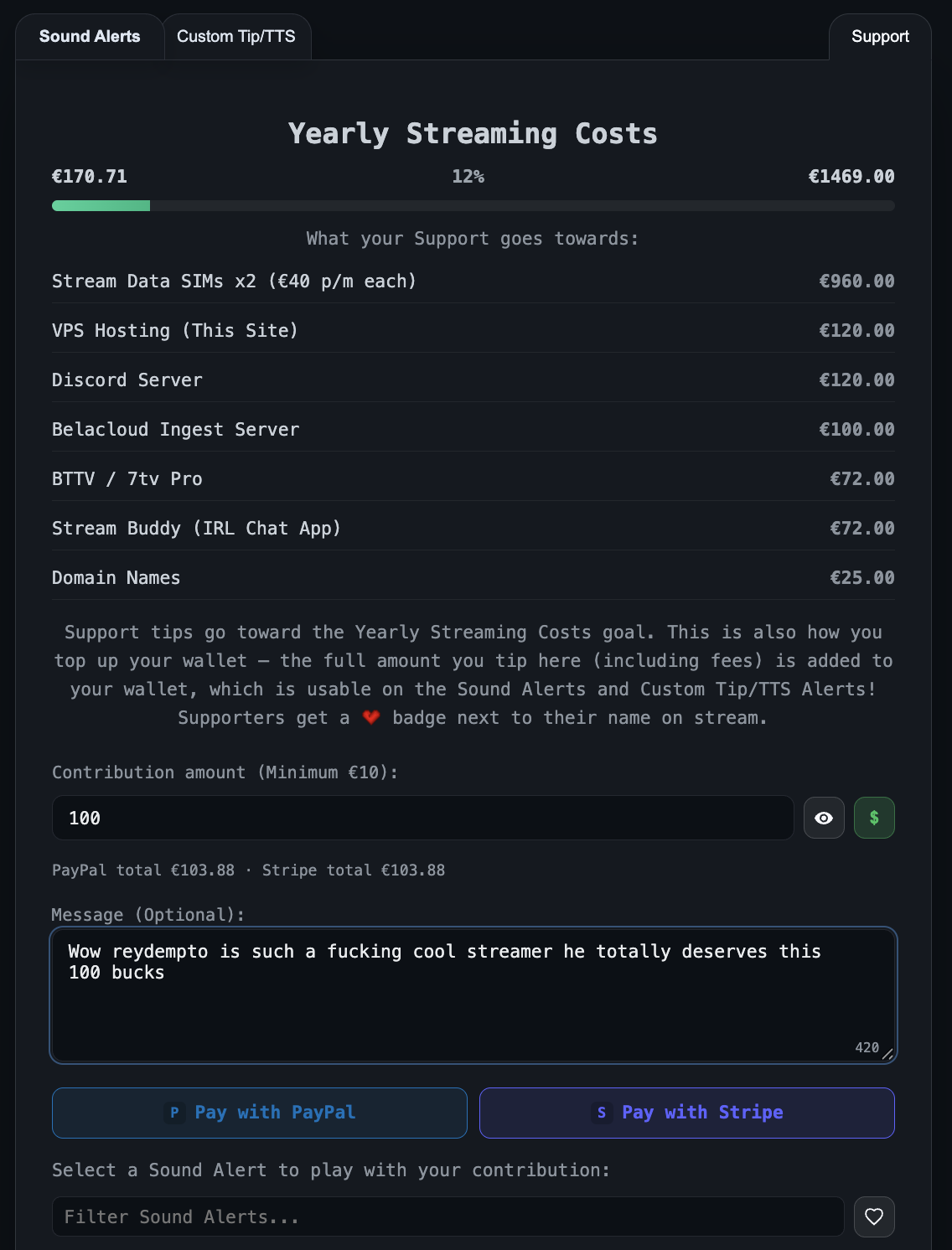 This is arguably the most important part of the entire site. Not only do all of the tips sent here go directly towards the yearly costs of streaming, it also serves as your primary method for adding funds to your Wallet. All of the yearly costs involved with my stream setup are itemized on this page.
Besides having its own goal, the only difference between this page and Custom Tip/TTS is that the minimum amount allowed is €10. This minimizes the fees for transactions, ensuring that as much of the funds as possible can go towards the goal. 100% of what you tip via the Support Tab gets added to your Wallet. If you chose to cover fees, the fee amount gets credited to your wallet too. You can choose a Sound Alert and a TTS message to go with your Support Tip, and they will not subtract from the amount added to your wallet--an extra thankyou for your contribution, which is VERY appreciated.
Bonuses for Supporting
 If you tip via the support tab, you will get a unique heart badge applied to your profile forever! You can choose to show or hide this heart next to your name in the chat overlay on the stream. Simply browse to your profile and tap on any badges you have unlocked to choose which show up next to your name in chat. There will be many more badges in the near future with secret conditions that need to be met in order to unlock..keep an eye out for that later.
Thank you so much
I sincerely appreciate the support, feedback and general engagement with this project so far, I have had SO much fun building this and tailoring the experience to the community's expectations. I am taking suggestions and brainstorming all the time about reydempto.tv and I can't wait to show you what else I have in store in the coming weeks and months.
See you on stream!
~Reydempto 
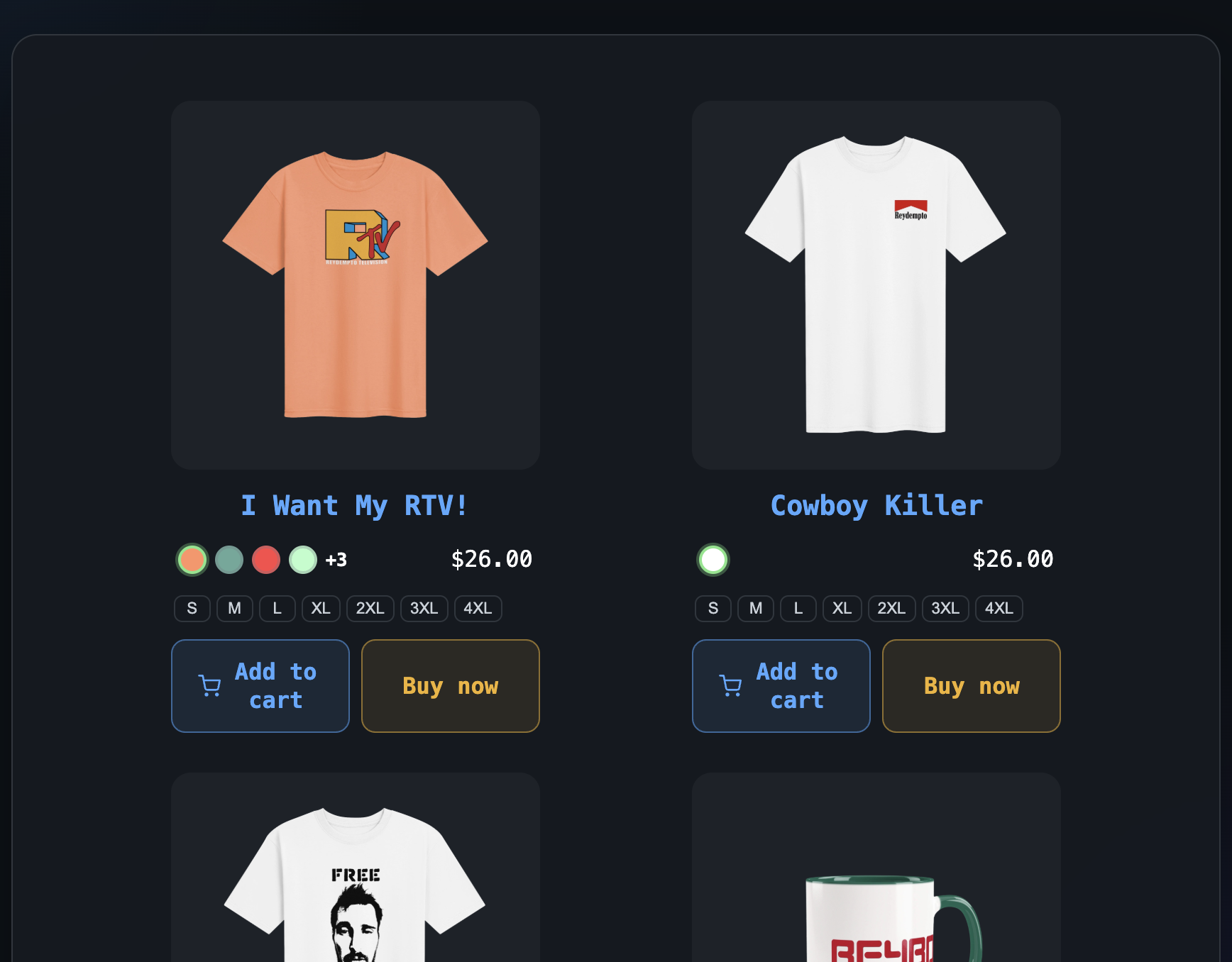 I am pleased to present you my latest addition to reydempto.tv: the Merchandise Shop! Now my merch is fully integrated into the site! Purchases have their own overlay popup, sound alert and so on. Using the merch page is pretty simple, not much has changed. It's pretty easy to navigate and grab your goods!
  The first new designs in almost two years! More coming soon too, so be sure to keep your eyes peeled for announcements.
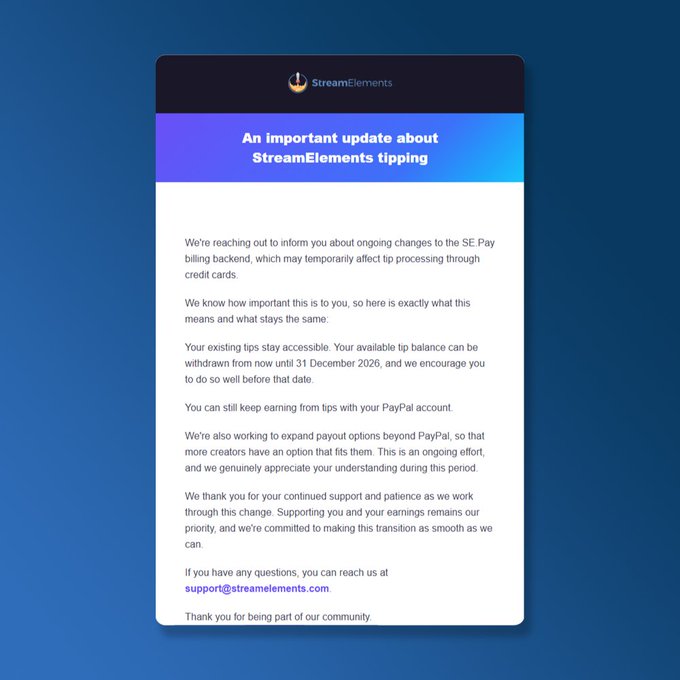 Then came StreamElements' big